


Before You Start
Firefox 57 or newer can run uBlock Origin, but using the latest stable Firefox release is the safer choice. This guide is for the full extension, not uBlock Origin Lite. Firefox still supports the extension model that lets uBlock Origin filter requests at full strength.
What you need
Firefox installed, 2 minutes, and access to Mozilla’s add-ons site.
What you’re installing
The full uBlock Origin extension, with dynamic filtering and the full filter engine available.
Install uBlock Origin in 3 Steps
No account is required. The cleanest path is to install directly from Mozilla Add-ons.
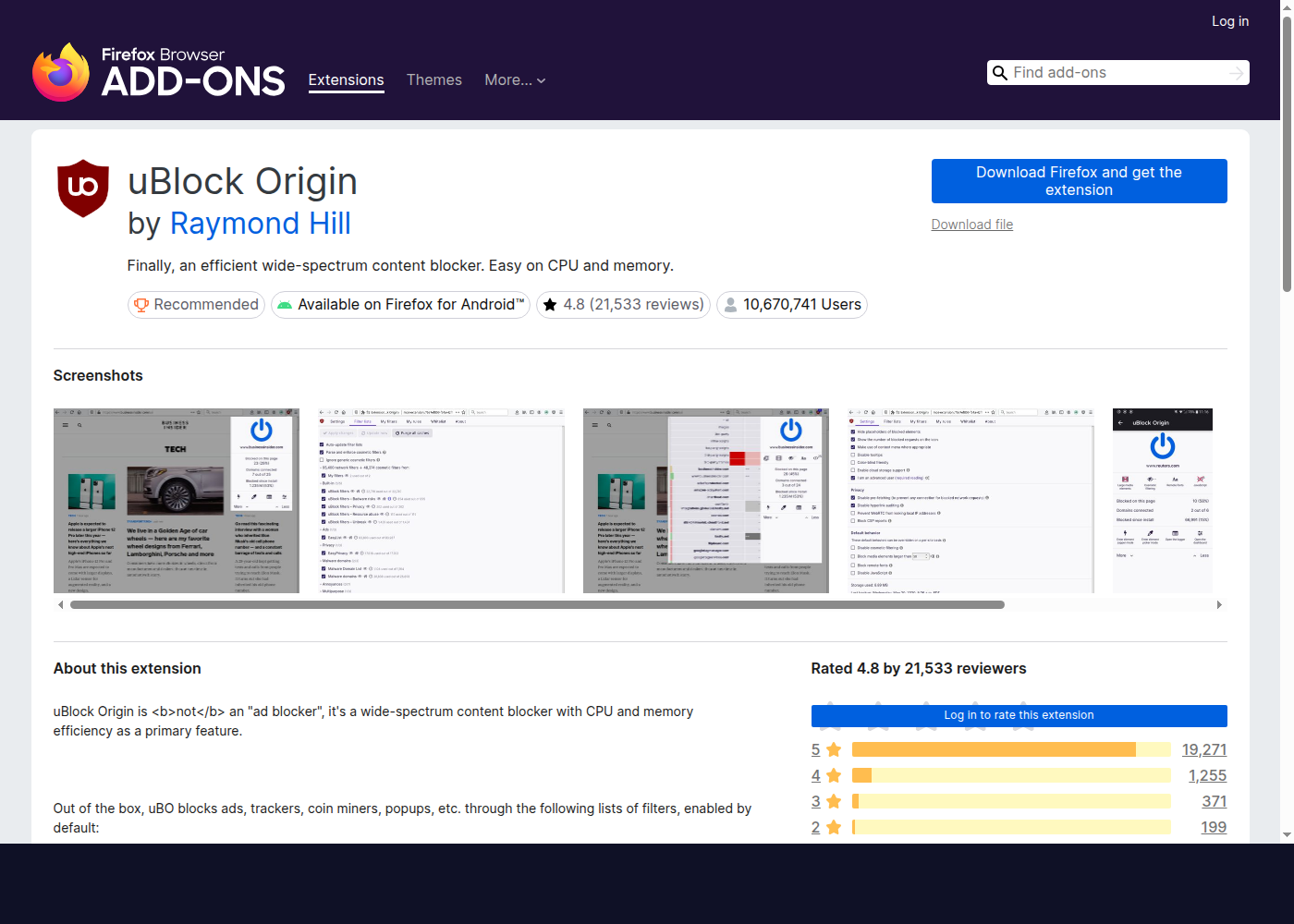
Open the Firefox Add-ons page
Go to the official uBlock Origin listing on addons.mozilla.org. Confirm the publisher is Raymond Hill.
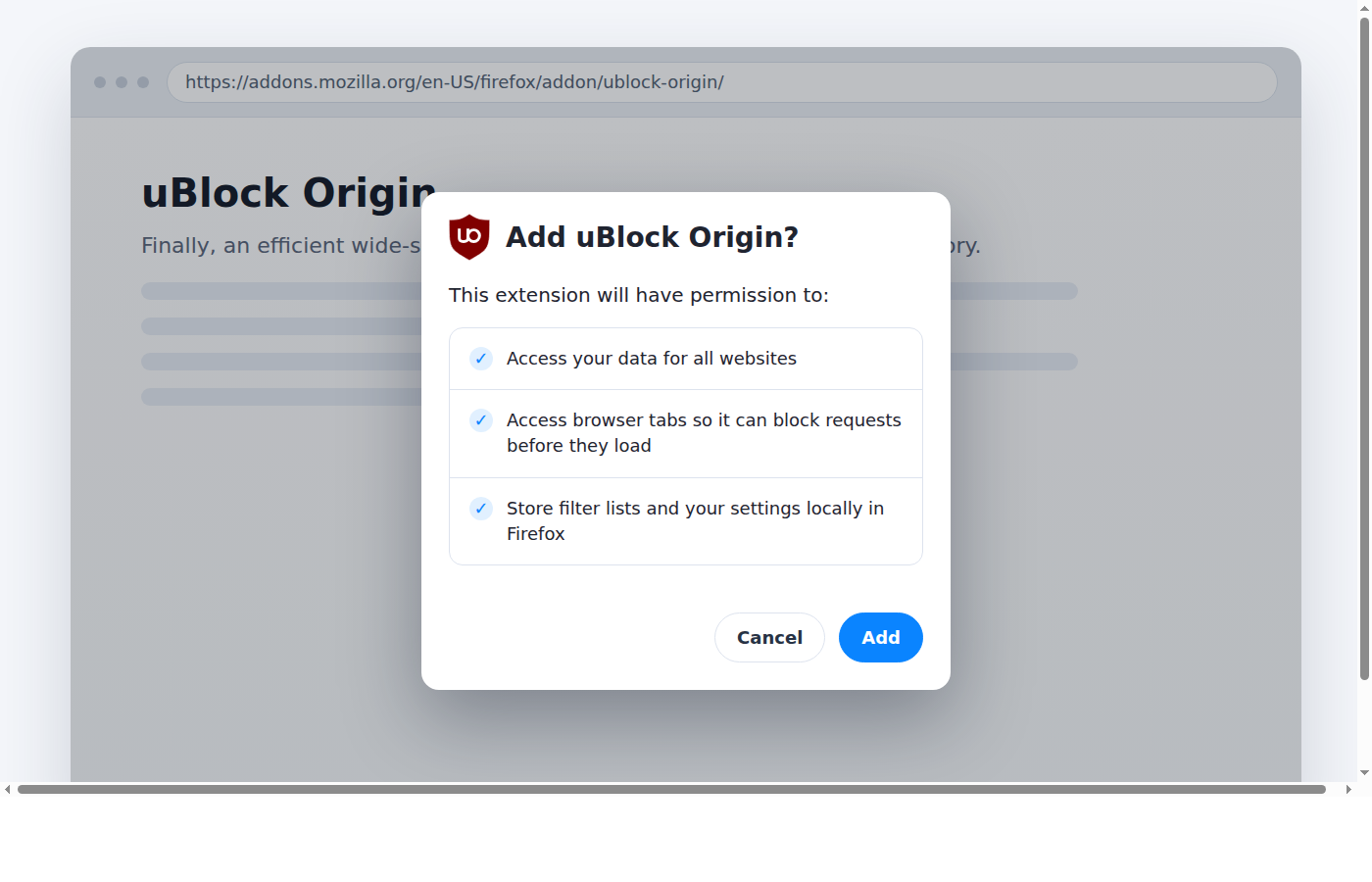
Click “Add to Firefox” and approve permissions
Firefox will show a permission prompt. The “read and modify data on websites” permission is what allows the blocker to inspect requests, hide ad elements, and stop trackers before they load.
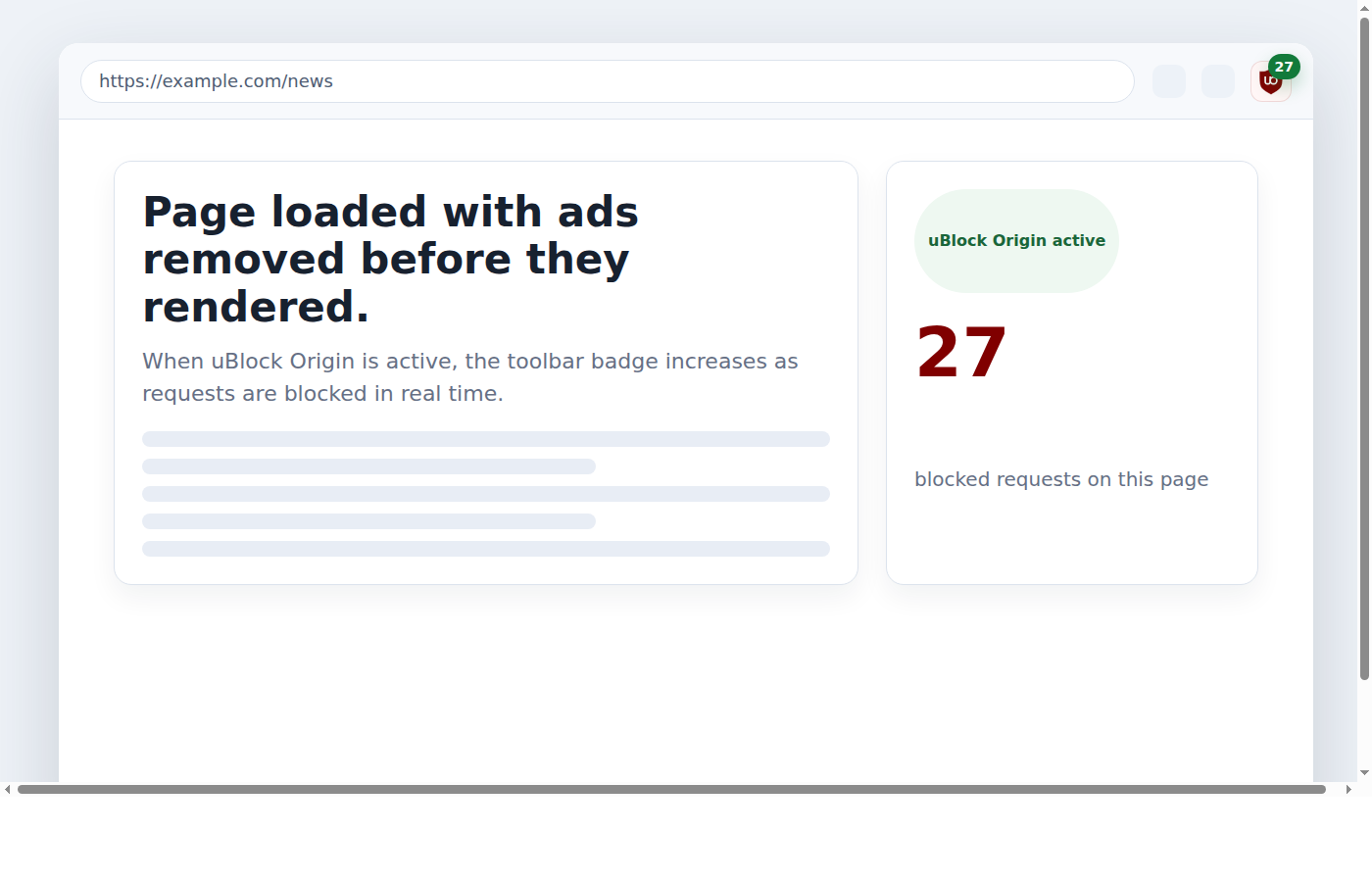
Verify it’s working
After install, look for the uBlock Origin icon in the toolbar. If you do not see it, open the extensions button and pin it. Then load a page that normally shows ads and check whether the blocked-request counter starts climbing.
Recommended Settings for Most Users
Filter lists worth enabling
The defaults are already strong: EasyList, EasyPrivacy, and uBlock Origin’s own filters do most of the work. For most people, the first extra list worth turning on is uBlock filters - Annoyances, which helps with cookie banners, newsletter nags, and other interruptions.
If you browse in languages other than English, enable only the regional list that matches your browsing. Turning on every regional list at once is unnecessary and can slow down troubleshooting later.
One setting most people miss
In the dashboard’s Settings tab, you can enable I am an advanced user. That unlocks dynamic filtering and the request logger. If you already know why you want those tools, turn it on. If not, leave it off for now. The default setup already blocks the vast majority of ads and trackers.
Firefox + uBlock Origin vs. Chrome
The important difference is not branding. It is extension capability. Chrome’s Manifest V3 model changed how blockers work. Firefox still supports the full uBlock Origin engine, which is why many people now switch to Firefox specifically for ad blocking.
Firefox
- Full uBlock Origin support
- Dynamic filtering available
- Better fit for heavier filter setups
- Best option if Chrome disabled your blocker
Chrome
- uBlock Origin Lite only
- Manifest V3 rule and capability limits
- Reduced flexibility for advanced users
- Useful if you must stay in Chrome, but weaker
Need the full background?
Read the homepage Manifest V3 explainer for the technical breakdown and the realistic options if you cannot leave Chromium-based browsers.
Troubleshooting Common Firefox Issues
uBlock Origin is installed but not blocking
- Open
about:addonsand confirm the extension is enabled. - Open the dashboard, go to Filter lists, and click Update now.
- Check the site is not whitelisted. If the power button is blue for that site, blocking is on.
Firefox feels slower after enabling extra lists
This is uncommon, but it can happen when too many optional lists are enabled at once. Turn off lists you do not need first, especially extra regional or niche annoyance lists, then retest.
YouTube ads are still showing
YouTube changes frequently. Updating filter lists is the first thing to try. If that does not fix it, wait for list maintainers to push updates and avoid stacking random custom lists that make debugging harder. For broader context on browser limits and current options, read the Manifest V3 explainer on the homepage. For now, the main rule is: keep your lists fresh before changing anything else.
What uBlock Origin Can’t Do on Firefox
uBlock Origin is excellent inside the browser. It does not block ads inside native mobile apps, smart TV apps, or traffic that never passes through Firefox. iOS is its own limitation as well, because Firefox on iPhone and iPad cannot run the desktop extension model.
Where DNS blocking fits
uBlock Origin handles your browser. But ads in mobile apps, smart TVs, and iOS devices never touch the browser. They load directly from ad servers your device connects to at the network level.
That is where DNS-based ad blocking comes in. Instead of filtering inside the browser, a DNS blocker intercepts ad-serving domains before your device even connects to them. It works on every device on your network, including the ones that cannot run browser extensions.
Several free options exist: uBlockDNS, NextDNS, and AdGuard DNS all offer DNS-level filtering. If you are already using uBlock Origin in Firefox, adding a DNS layer covers the gaps the browser extension cannot reach.